
We are excited to introduce a faster way shortcut to identify calorie information in Fito. With Fito Food Recognition, you can use a simple shortcut to recognize food calories from your camera or a delivery app, then log food quickly without extra friction. You can trigger it with the Action Button or by tapping the back of your iPhone.
This feature is designed for moments when you want to log food right away, while the meal is still on screen. Instead of switching between apps or searching manually, you can launch the shortcut instantly and turn what you see into a quick food log. That makes calorie tracking feel much easier to keep up with in real life.
What Is the Shortcut to Identify Calories?
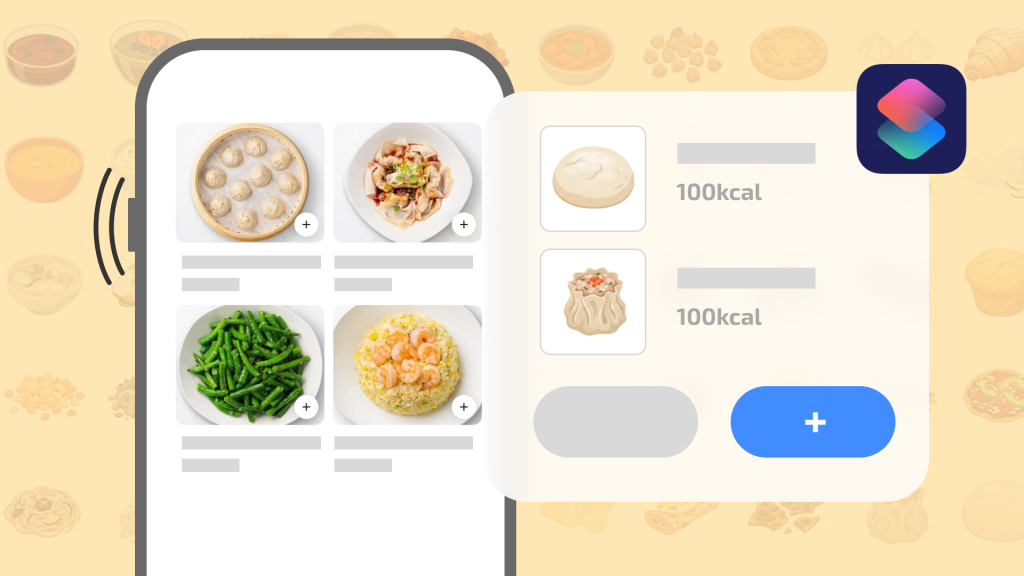
The shortcut is a quick way to run Fito Food Recognition from your phone. When you see food on screen in a camera view, restaurant page, or delivery app, you can trigger the shortcut and let Fito identify the information faster. It is built to reduce steps, save time, and make food logging feel more natural.
If you often forget to log meals because the process feels too slow, this shortcut can help a lot. The less friction there is between seeing food and recording it, the more likely you are to stay consistent with calorie tracking.
How to Use It with the Action Button
If your iPhone has an Action Button, you can set it up to open the food recognition shortcut. This is a very fast option if you want one physical button to trigger calorie identification immediately.
- Open Settings > Action Button.
- Swipe right, find Shortcuts, then tap Choose Shortcut….
- Select Fito Food Recognition.
- Once set up, press and hold the side Action Button to recognize information on the screen and quickly log food.
After setup, the Action Button becomes a shortcut to calorie recognition whenever you need it. That means fewer taps, faster logging, and less chance of skipping a meal entry just because you were busy.
How to Use It with Back Tap
If you prefer gestures, you can also trigger the shortcut by tapping the back of your iPhone. This makes Fito Food Recognition easy to use even if you do not want to rely on the Action Button.
- Open Settings > Accessibility > Touch > Back Tap.
- Tap Double Tap or Triple Tap, then select Fito Food Recognition.
- Once set up, double tap or triple tap the back of your iPhone to recognize information on the screen and quickly log food.
Back Tap is especially useful if you want a hands-free-feeling shortcut that works naturally while browsing menus, looking at camera food photos, or checking delivery app items. It keeps the process quick and unobtrusive.
Why This Shortcut Makes Calorie Tracking Easier
Most people do not struggle with knowing that tracking matters. They struggle with making the habit easy enough to repeat. A shortcut changes that. When you can identify food calories with one gesture or button press, the habit becomes simpler to start and easier to maintain.
This matters even more when you are using delivery apps or camera-based food moments, because the information is already in front of you. Instead of relying on memory later, you can act immediately. That improves accuracy, reduces friction, and helps you stay more consistent with your nutrition goals.
Who Should Use Fito Food Recognition?
- People who want a faster way to log food from a camera or delivery app.
- Users who often forget to record meals because the logging process takes too long.
- Anyone looking for a practical shortcut to identify calories on iPhone.
- People who prefer using the Action Button or Back Tap for quick access.
- Users who want food tracking to feel more immediate and less repetitive.